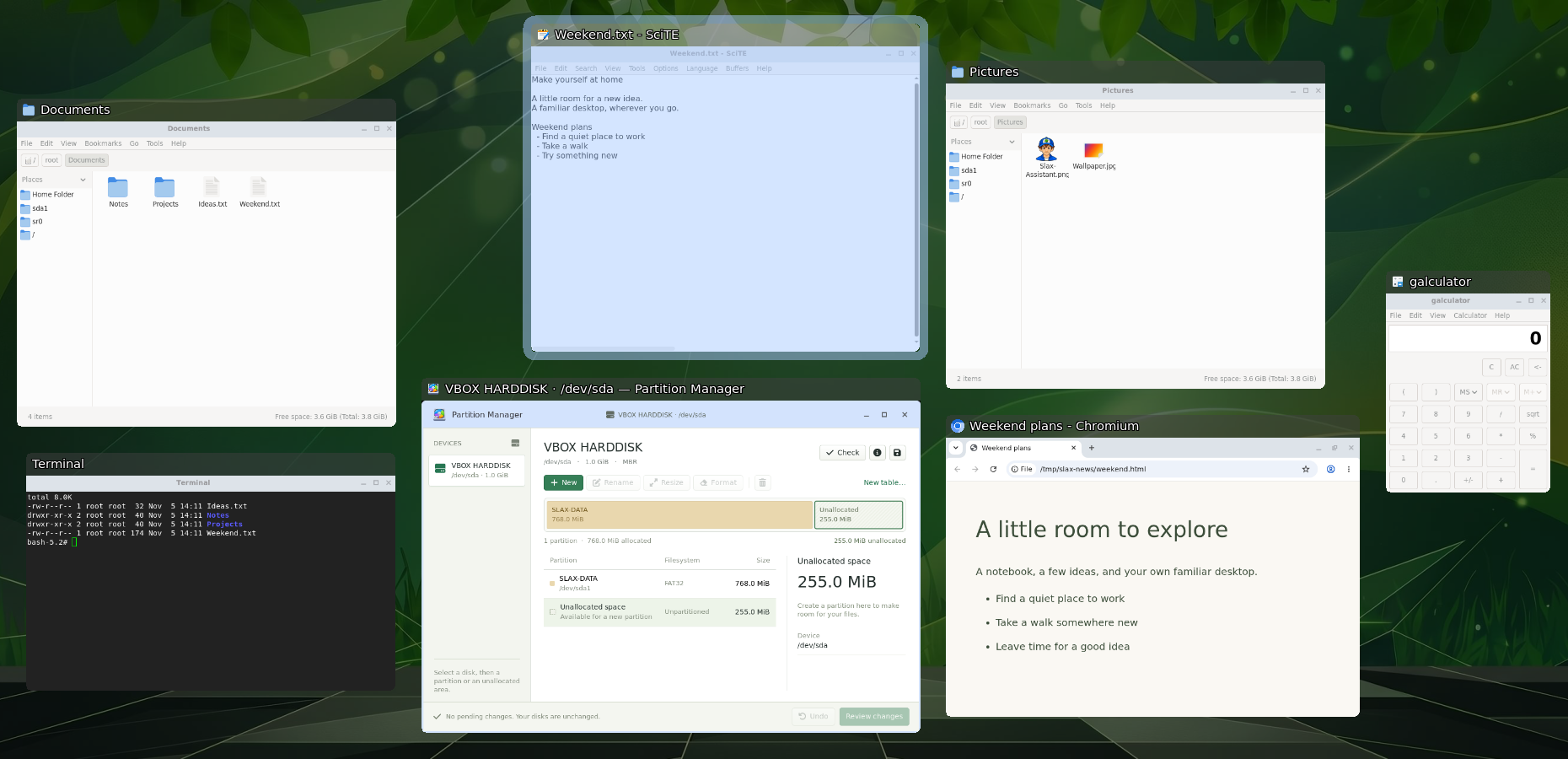
Alt + Tab previews
Hold Alt and tap Tab to preview the windows on your current workspace. Release Alt to switch, or hold Shift as you tap Tab to go back.

Find apps faster, get help from Slax AI Assistant and install Slax on USB or alongside your existing system.
Still your pocket operating system · 512 MiBClick the green launcher button at the bottom left, tap the left Super key, or press Alt + F2. Start typing to find an app, or browse by category.
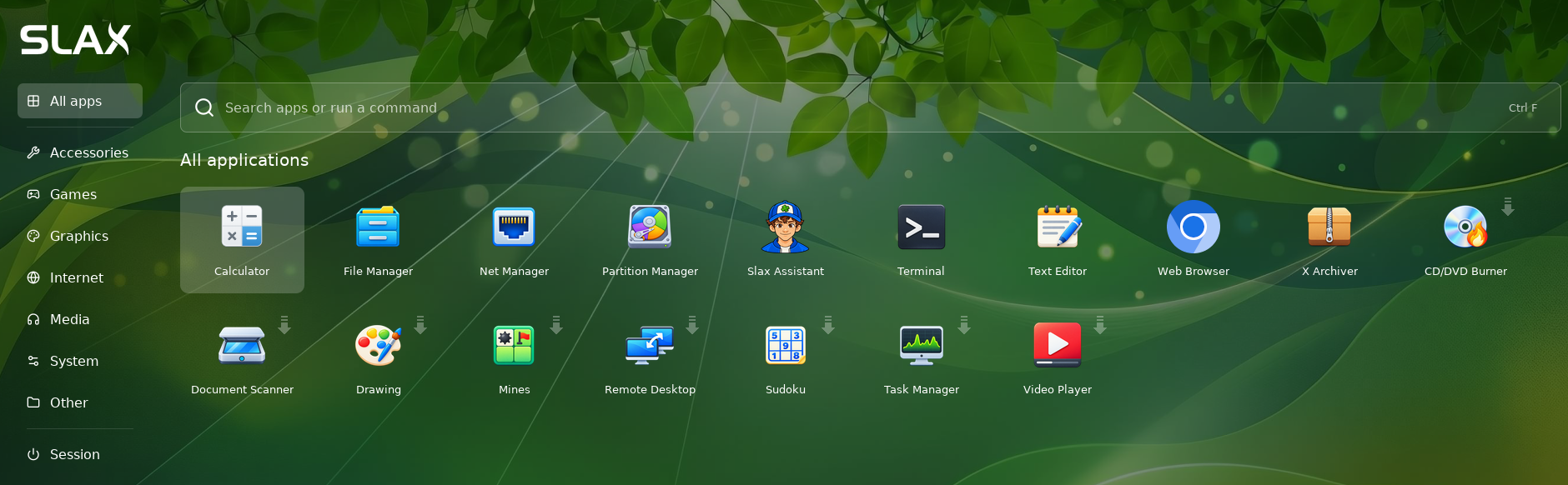

Click a marked app and Slax downloads, installs and opens it for you. You’ll need an internet connection. You can also install apps from the terminal with apt.
Hold Alt and tap Tab to preview the windows on your current workspace. Release Alt to switch, or hold Shift as you tap Tab to go back.

Windows from the same app share a taskbar icon. Hover over it to see live previews, then move over a preview to peek or click to switch. Drag app icons to rearrange them.
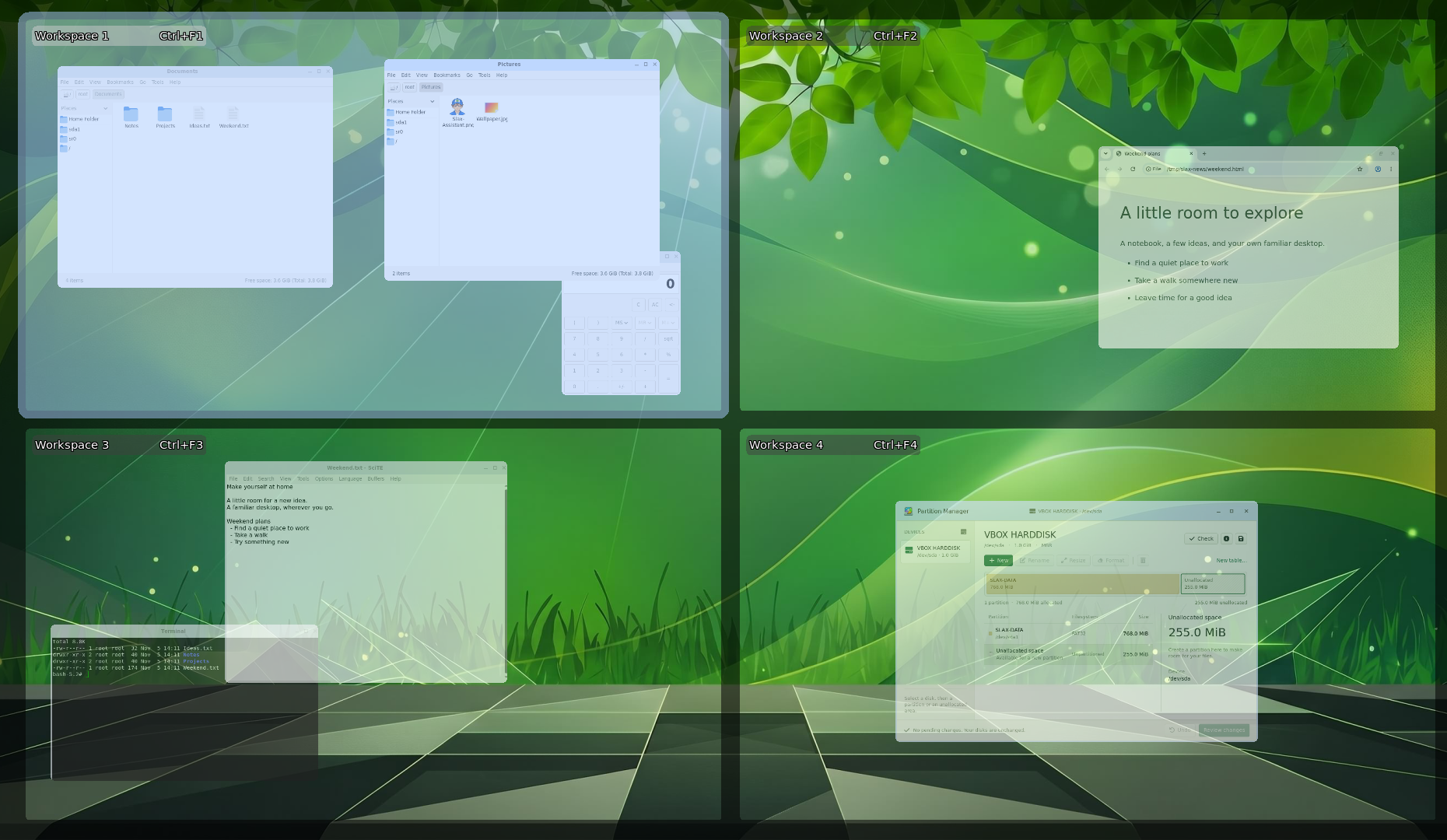
Press Alt + F3 to see all four workspaces together, or jump straight to one with Ctrl + F1 through F4.
Explore workspaces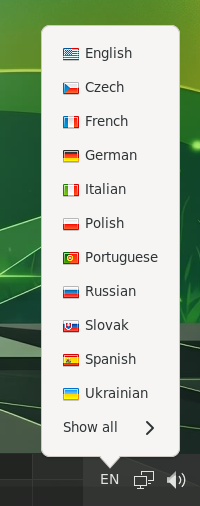
Click the language indicator in the taskbar and choose a keyboard layout. Select Show all to see more options. Slax remembers your choice so you can switch between that layout and English using any of these shortcuts.
Slax also includes fonts for reading Chinese and Japanese text in apps, along with color emoji.
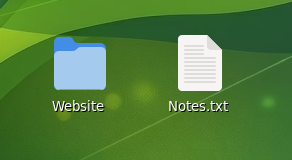
Keep the files and folders you’re working on right on the desktop.
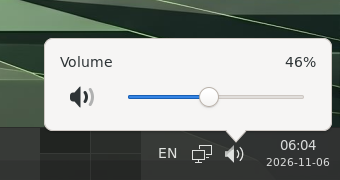
Click the speaker for a volume slider, scroll over it, or use the media keys. Slax remembers your volume when you mute and unmute.
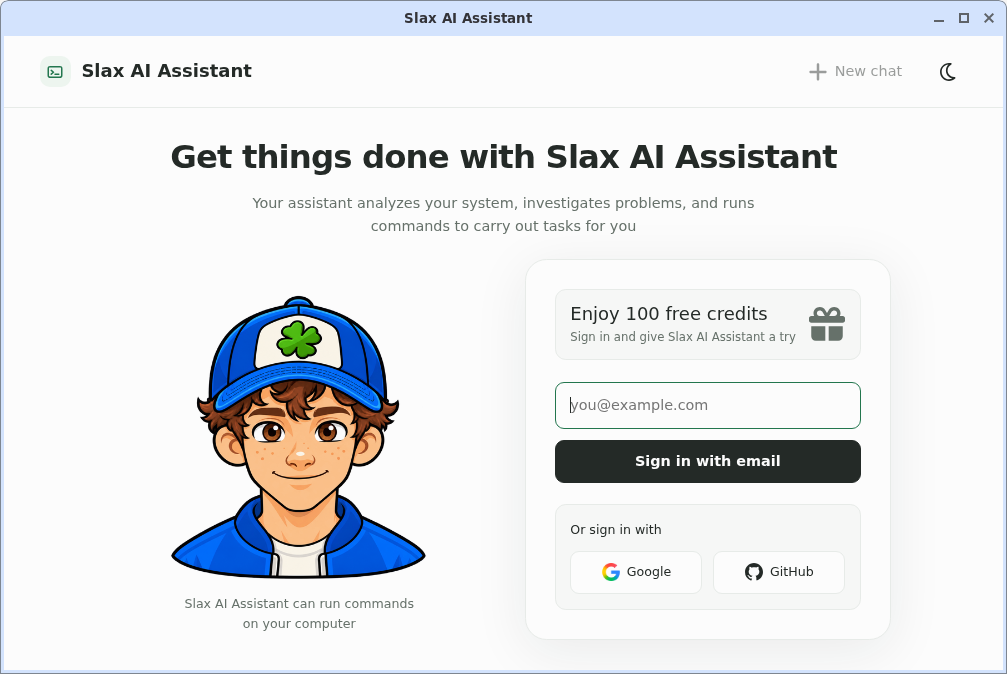
Describe a task in your own words. The assistant can inspect your system, investigate problems and run commands. Sign-in and internet access are required.
Meet the assistant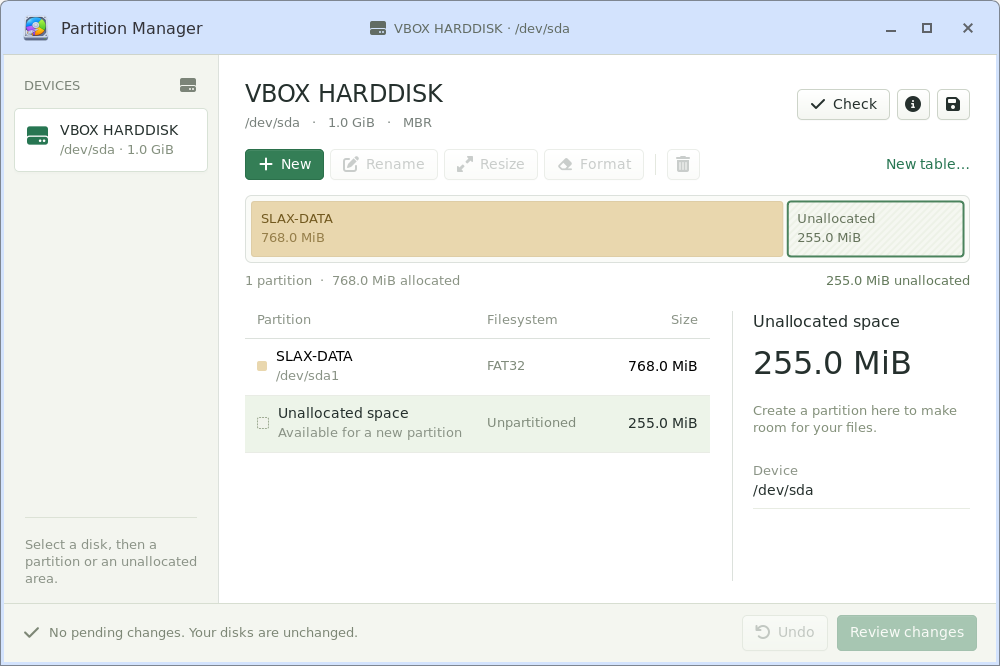
See the space available on your disks, then create, resize or format partitions. Review the changes before applying them, all offline.
Explore Partition Manager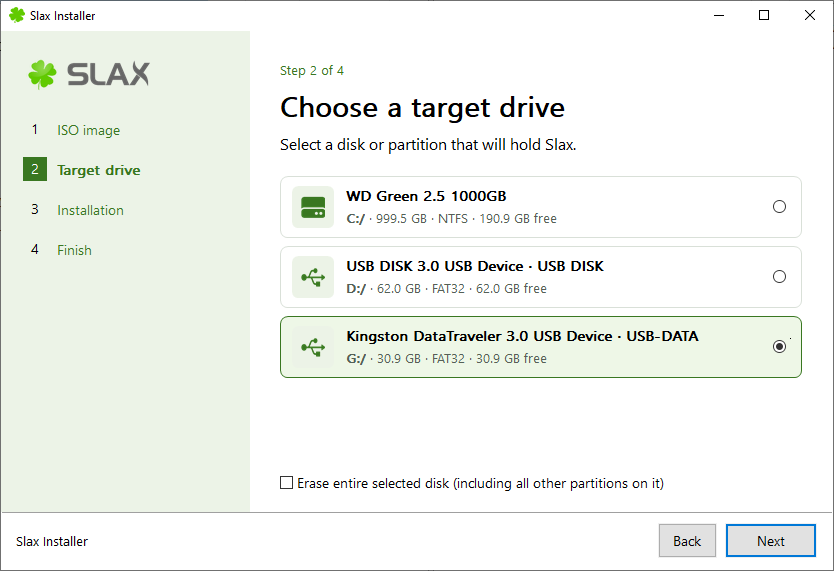
Prepare a USB drive or add Slax alongside your existing system with the graphical installer for Windows and Linux.
Meet the installer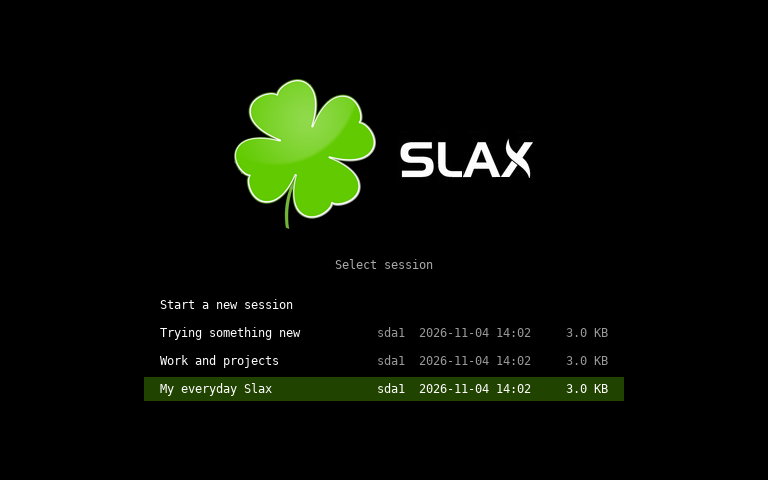
Keep your files and settings on a writable drive. In the session chooser, F4 duplicates a session and F6 renames it.
Explore sessionsThe signed bootloader and kernel let Slax start with UEFI Secure Boot enabled on compatible PCs.
LVM, LUKS encryption and tools for filesystems including XFS are included for disk maintenance and recovery. VirtualBox, VMware and SPICE integration supports features such as automatic resizing, clipboard sharing and shared folders when enabled by your host.
Slax 2026.11 uses a signed Linux 6.12 kernel and OverlayFS. You can still include .sb modules before boot, but loading and unloading them in a running session with slax activate and slax deactivate requires AUFS and is unavailable in this build. Installing with apt and keeping your changes in a persistent session still works.
The whole desktop, in a 512 MiB ISO
Want the technical details? Explore the commit log or read the boot and USB guide